General Information
| Author | : Windows Registry Guide Team |
| Publisher | : Windows Registry Guide |
This article is for educational purpose only. Author is not responsible for any damages these informations could cause. They are therefore not recommended for inexperienced users! YOU HAVE BEEN WARNED.
Would you like to change the Start button to say something else, perhaps your name, company or any other 5 or less letter word? This article explains the procedure to manually modify the text of the Windows Start button.
Manually changing the Start button requires the use of a binary file editor (Hex editor) to alter a critical Windows system files. This method has been successfully tested on Windows 95, 98, ME and 2000.
As mentioned before you will need to have a hex editor installed, there are many different products available and if you don't have one already a quick search of a shareware site should provide many choices, for this tweak we only require basic features.
The file that needs to be changed is Windows Explorer, and it is essential to make a backup before you modify anything. "Explorer.exe" can be found in the Windows directory, usually C:\WINDOWS for Windows 95, 98 & ME and C:\WINNT for Windows NT/2000. Make a copy of "Explorer.exe" and place it into another directory, C:\BACKUP might be a good choice.
Open the original "Explorer.exe" found in the Windows directory in your hex editor. You now need to find the word "Start", although there are many entries for "Start" in the file only one is used for to label the Start button. Use the search function in the hex editor to find all the strings equal to "S t a r t" which is represented as "53 00 74 00 61 00 72 00 74" in hex values. As there are many different "Start" strings keep searching until you find one located just before this text "There was an internal error and one of the windows you were using has been closed.". Below is a list of offsets to help you locate the correct text.
- Windows 98
Offset: 0x00028D6E - 0x00028D76 - Windows NT4
Offset: 0x00028BEE - 0x00028BF6 - Windows
ME
Offset: 0x00033DDE - 0x00033DE6 - Windows 2000
Offset: 0x0003860E - 0x00038616
The result should
look similar to the image below,
depending on the display from your hex editor.

Once you have located the string, you can then replace the letters in "Start"
with five other
characters. You must use exactly five characters, if the word
you want to use is less, replace
the remaining characters with the space key.
In this example we have replaced "Start" with
"Guide", alternatively a
three-letter word would look like "A B C" (note the spaces).

Now save the file in the Windows directory with a different file name, for example "explorer.new". You can't save it as "Explorer.exe" as that file is currently in use and can't be overwritten. Confirm that you have the two Explorer files in the Windows directory, they both should be the same file size but have different modified dates.
The next step is different depending on your operating system. Only do the step required for your version.
- Windows 95, 98 & ME
Exit to DOS (or use a boot disk for Windows ME) and at the command prompt change to the Windows directory and rename "explorer.exe" to "explorer.old". Then copy the newly modified Explorer "explorer.new" to "explorer.exe". Do a directory listing and confirm that "explorer.exe" has the most recent modified date and time. Restart the computer and Windows should reload along with the new Start button text. - Windows NT/2000
Windows 2000 users may need to firstly disable Windows file protection to stop Windows from replacing the modified file with the original. First close any open applications and open a new Command Prompt window, then switch back to the GUI and open the Task Manager. Find the "explorer.exe" process and end it, you should now be left with only the command prompt and task manager. Switch back to the command prompt and change to the Windows directory, rename "explorer.exe" to "explorer.old", and copy the newly modified Explorer "explorer.new" to "explorer.exe". Do a directory listing and confirm that "explorer.exe" has the most recent modified date and time. Switch back to Task Manager and launch a "New Task" called "explorer.exe" this should reload the shell along with your modified "Start" button.
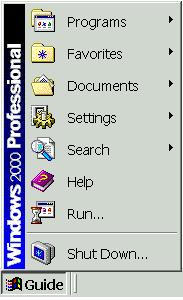
If everything has gone successfully you will now have a new Start
button,
and also hopefully learnt something about the Explorer file structure.
If you do
have problems replace the faulty Explorer with the backup made
during the first step.


Copyright © 2003 - 2005, Bayu Prasetio.