General Information
| Publisher | : PCPlus Tabloid |
| Published | : Edisi 61/III/2002 [2002/01/16-22] |
Commonly, if you want to browse or explore the folders or your documents, you can easily do it with Windows Explorer. There are many ways how to run Windows Explorer:
- from start menu: Start -> Programs -> Windows Explorer
- or you can do this: My Computer -> Open or Explore
- you can use Run menu too: Start -> Run -> explorer.exe
Ok, Windows Explorer has opened, and so you can go to the folder or document you desired from Windows Explorer. Its very easy to do.
But the problem goes here. If the folder or document you desired is frequently accessed. Says that you have a set collection of exotic pictures you saved on D:\Galeri\Angkasa\Planet folder, so to go ahead to that folder, you have to click the drive D:, and sequently you go to Galeri folder, Angkasa folder, and of course Planet folder. And you just select the exotic pictures you desired to accessed. Wow I think it takes so many steps! Do you?
So if you have same opinion about it, you may be ask "Are there any tricks to cut off those long steps? Humm, if you have accessed that file before its should be very easy. You can access again from Most Recently Used Documents, which can be accessed from Start -> Documents, and select the file you desired.
So, how about the document which had never been accessed before? The one of the alternate tricks is using Windows System Tray Toolbar. To create this toolbar, you can follow these steps below:
- Right click any of the free area on Windows Taskbar
- Select Toolbars from the pop-up menu
- Select New Toolbar... menu
- And then a folder dialog window appear to
get your choise, the folder you
desired to add to the Toolbar
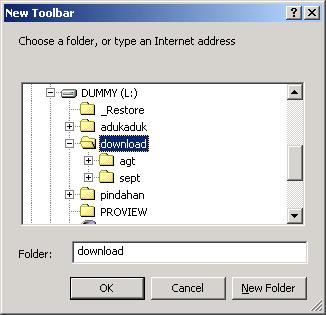
- Click Ok to create the Toolbar
Thus, your toolbar appear on Windows
Taskbar, which the left side is the folder
name you have selected, and the right side is set
of sub folders and files contained
in that folder.

you can easily open the folder or file from toolbar just by one mouse click. If the area you clicked is name of the folder, Windows Explorer will appear and show the content of the folder you clicked. And if the area you clicked is a file, Windows will open the file with registered application automatically. So, It is shorter and easier to do.
To delete the toolbar you had been created, you can follow these steps below:
- Right click any of free area on Windows Taskbar
- Select Toolbars from the pop-up menu
- Select toolbar name you want to delete
If you think that your toolbar makes
Windows Taskbar fulfilled with icons and folder
names, dont worry because toolbar can
be resized, and it makes your Windows Taskbar
more reliable and nice.
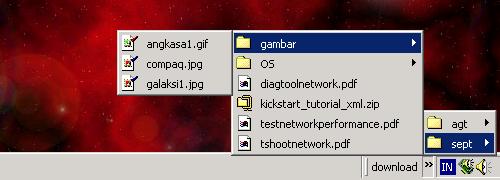
To resize the toolbar, you can
simply follow the steps:
- Point your mouse to the left of your toolbar, (it signed with vertical line shape), if you point to the right area, your mouse shape changed to horizontal arrow.
- Drag the vertical line to right side to Windows System Tray Taskbar until all of folder names and files hidden, except your toolbar name.
To access the folder or file which is hidden from Taskbar, just click the arrow symbol located at right side of the toolbar name. Then the pop up menu (like Windows Start Menu) contain the folder names and files appear. I hope you satisfy with this navigation system.
Toolbar is also has some amazing things. One of them when dragged to Windows Desktop. But you must minimize all windows before, and then click and drag toolbar to windows Desktop, you'll see a nice thing.
So, lets play your toolbar.


Copyright © 2003 - 2005, Bayu Prasetio.